> For the complete documentation index, see [llms.txt](https://guide.moontrader.com/llms.txt). Markdown versions of documentation pages are available by appending `.md` to page URLs; this page is available as [Markdown](https://guide.moontrader.com/en-moontrader-docs/tips-and-recommendations/watchdog-trading-core-monitoring-setup.md).
# Watchdog: Trading Core Monitoring Setup
This guide explains how to set up monitoring for MoonTrader trading cores using Watchdog — a special MTCore operating mode that tracks the status of connected cores and automatically manages risks.
### What Watchdog Does
Watchdog protects your capital on two levels:
**1. Core Status Monitoring** Continuously checks trading core availability and alerts you about issues via Telegram.
**2. Emergency Protection (Always Active)** When a trading core fails, Watchdog:
* Cancels all open orders
* Closes all active positions
This protection is always active and triggers automatically — no configuration required.
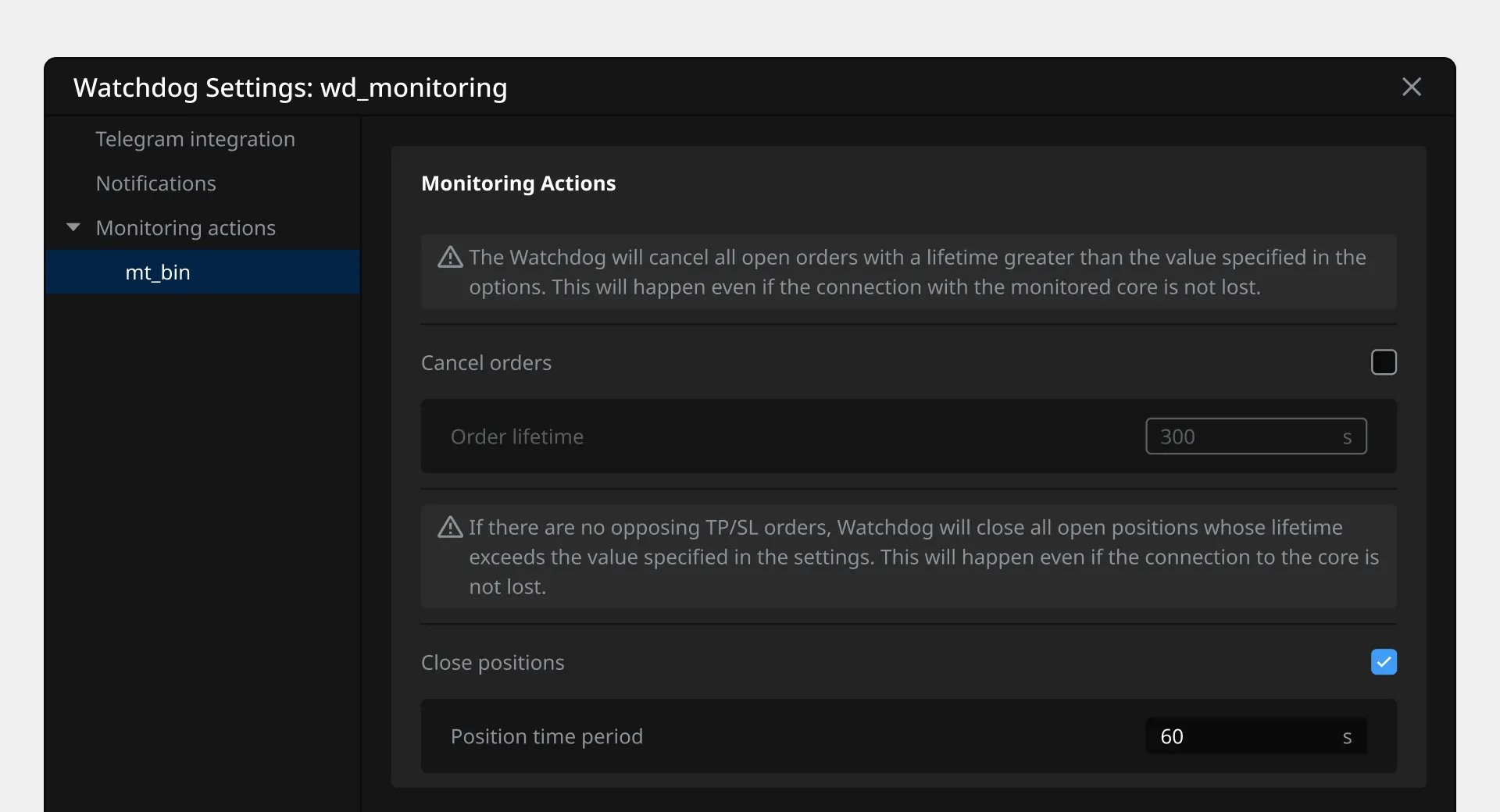
**3. Automatic Risk Management (Configurable)** Regardless of core status, you can enable additional protection rules:
* **Order Lifetime Control** — automatically cancels orders that remain open longer than specified
* **Unprotected Position Control** — closes positions without active Take Profit or Stop Loss that exist longer than specified
Each rule is enabled separately and works even when the core is operating normally.
**What you'll be able to do after setup:**
* Monitor multiple trading cores from a single interface
* Receive Telegram notifications about failures and issues
* Configure rules for automatic order cancellation and position closing
* Manage monitoring parameters for each core individually
**Important:** Watchdog configuration requires simultaneous operation of Watchdog Core and all monitored trading cores.
### General Architecture
The Watchdog system consists of three components:
1. **Watchdog Core** — runs on a separate VPS server and monitors trading core status
2. **Trading Cores** — operate on their own VPS servers
3. **MoonTrader Client** — installed on your computer for monitoring management
**Connection scheme:**
* Watchdog Core is created on a separate VPS (VPS-Monitor)
* Each trading core operates on its own VPS (VPS-1, VPS-2, VPS-3...)
* Client on your PC connects to Watchdog Core and manages the entire system
### Step 1. Creating Watchdog Core
Watchdog Core is a special MTCore operating mode for monitoring other trading cores. It's installed on a separate VPS server.
**This VPS will host only Watchdog Core** — placing trading cores or other MoonTrader components here is not recommended.
#### Windows
1. On the VPS server, locate the `MTCore.exe` file
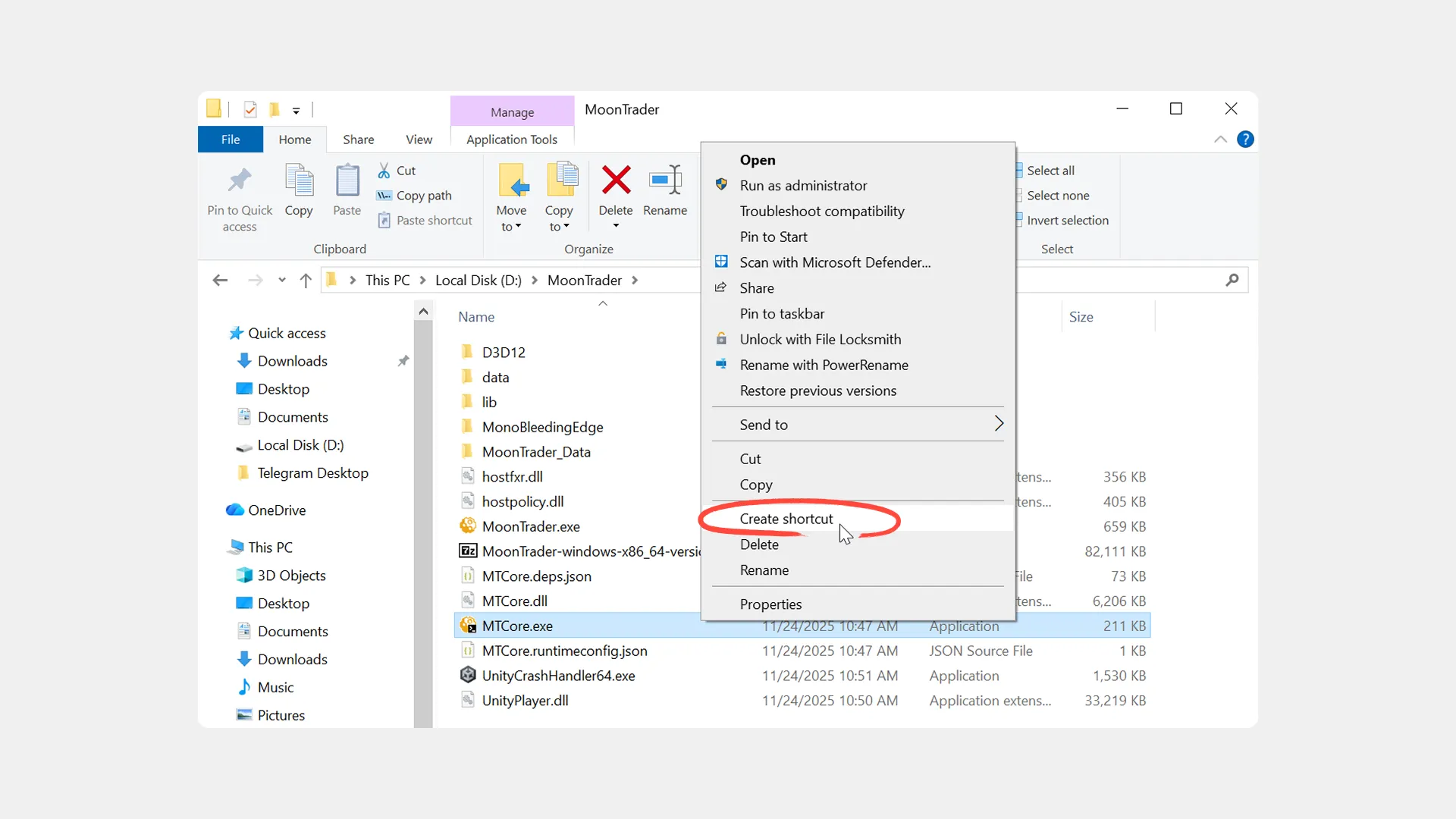
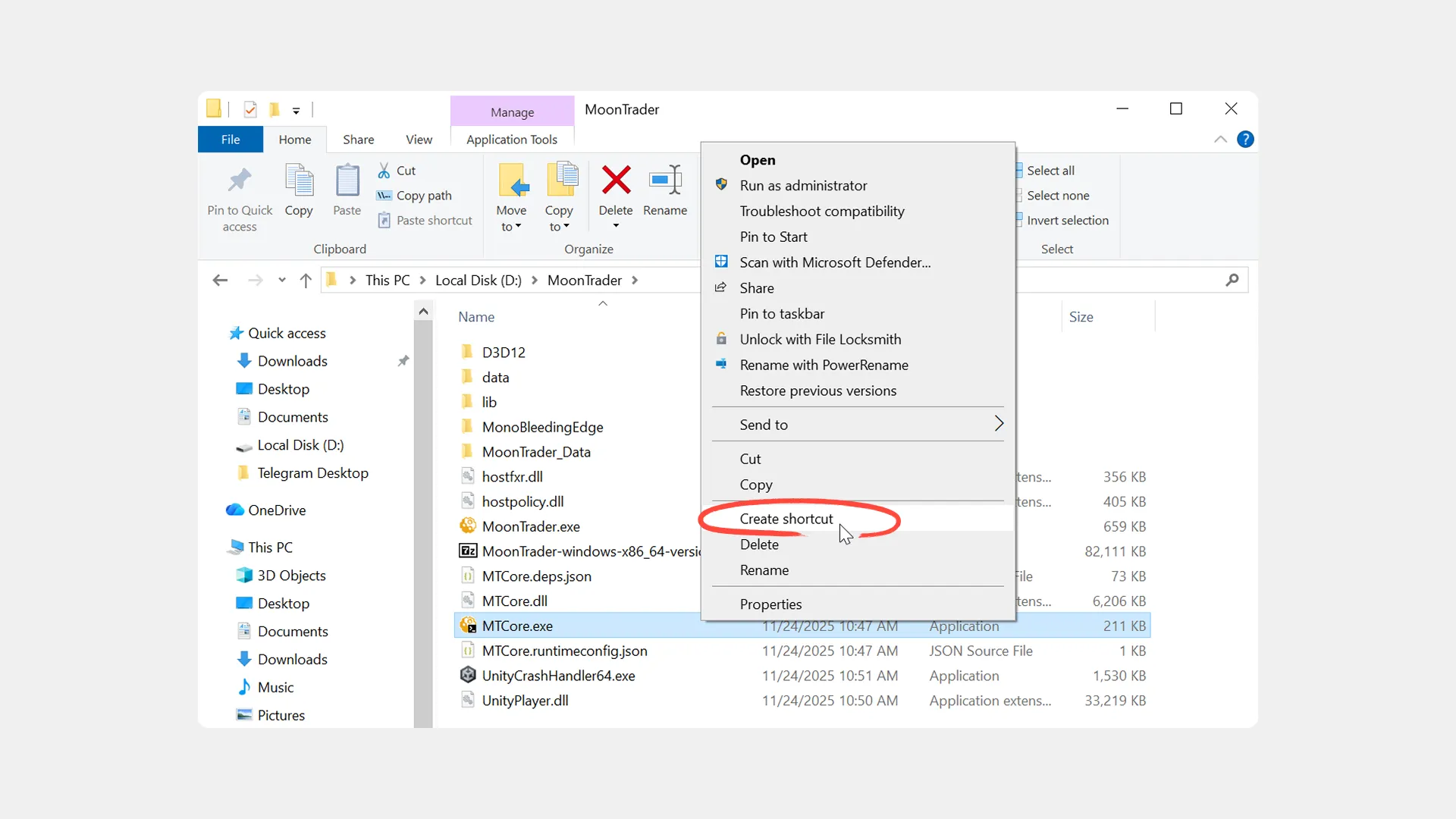
2. Create a shortcut for this file:
* Right-click on `MTCore.exe`
* Select "Create shortcut"
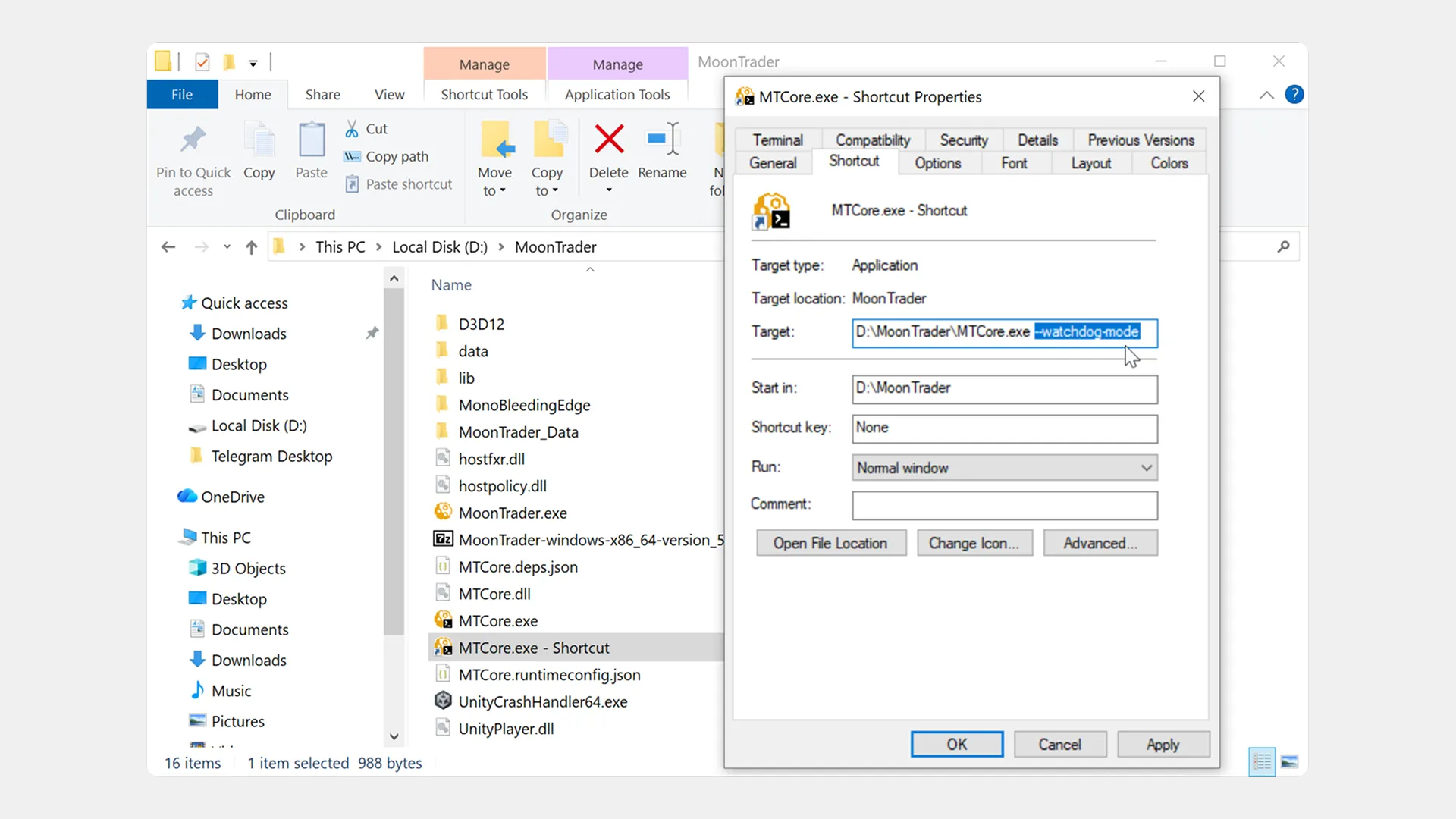
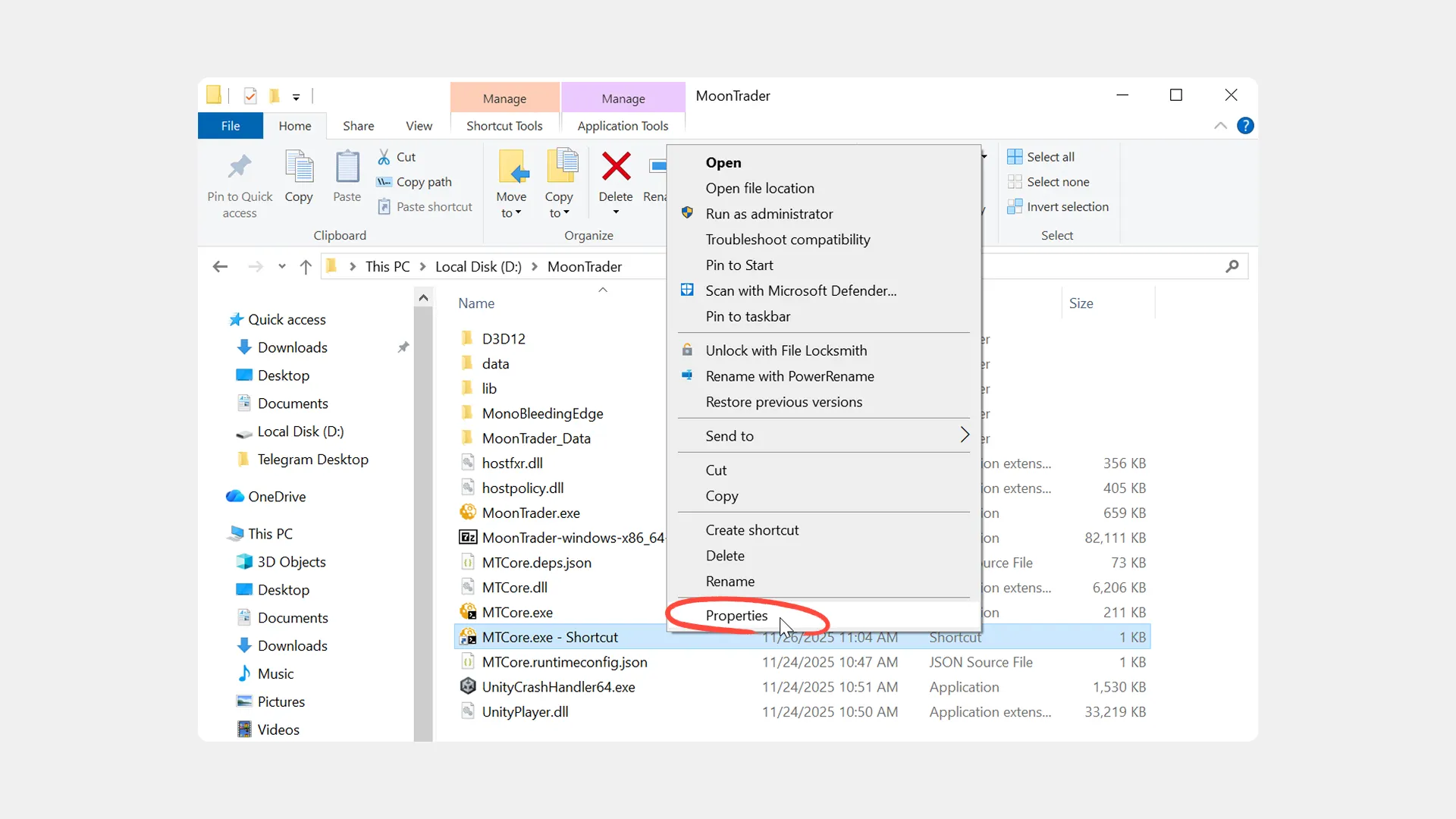
3. Open shortcut properties:
* Right-click on the created shortcut
* Select "Properties"
4. In the "Target" field, after the file path, add a space and the `--watchdog-mode` parameter
Example: `C:\\MoonTrader\\MTCore.exe --watchdog-mode`
5. Click "OK"
6. Launch MTCore using the created shortcut
#### Linux
Launch MTCore with the `--watchdog-mode` parameter in terminal:
```bash
./MTCore --watchdog-mode
```
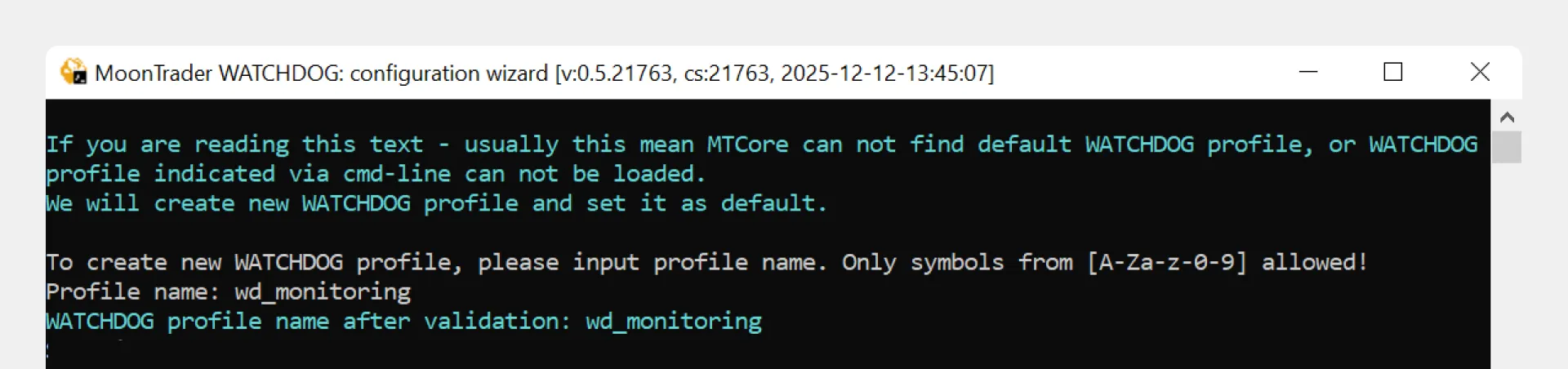
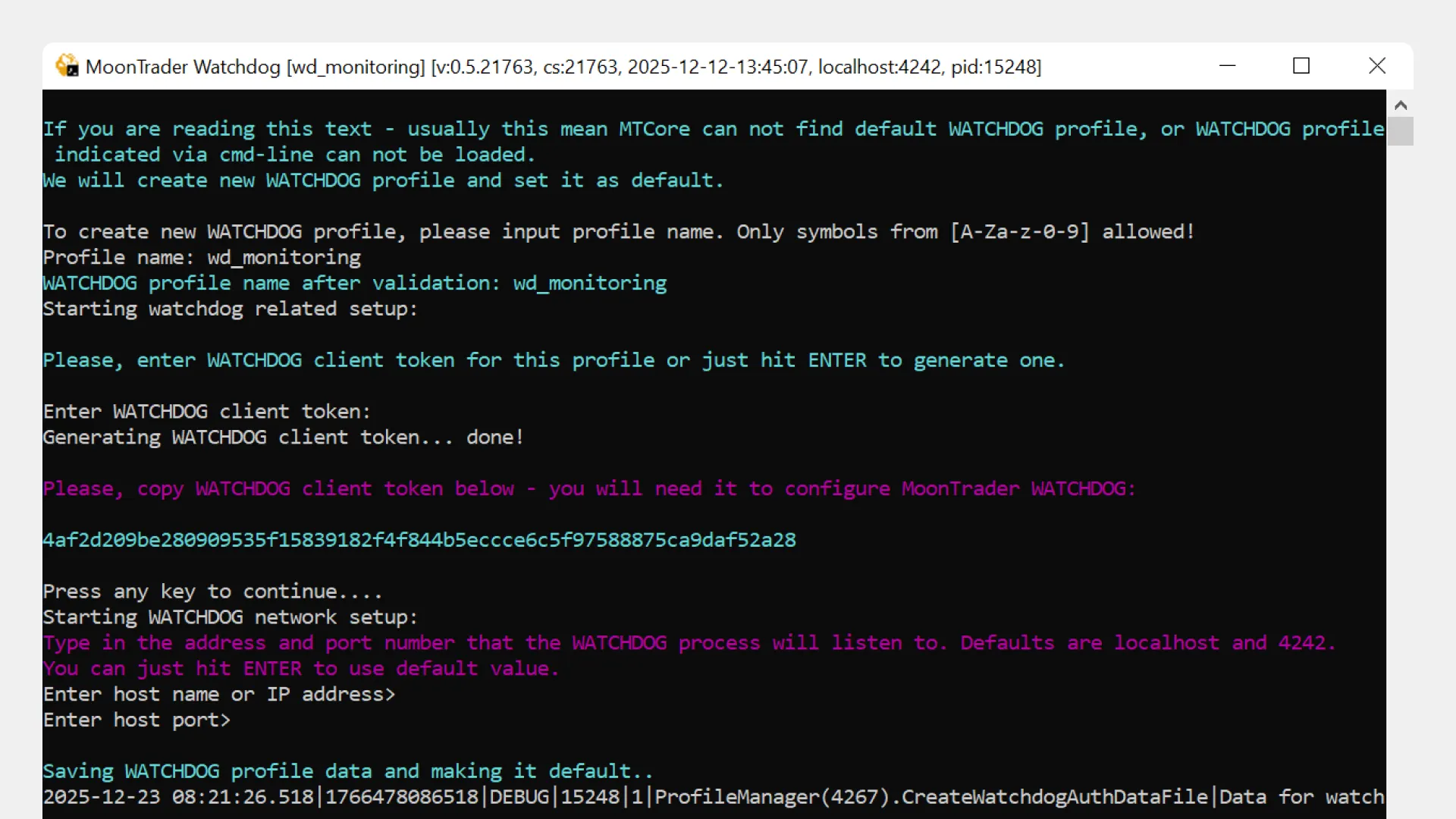
#### Creating the Default Watchdog Profile
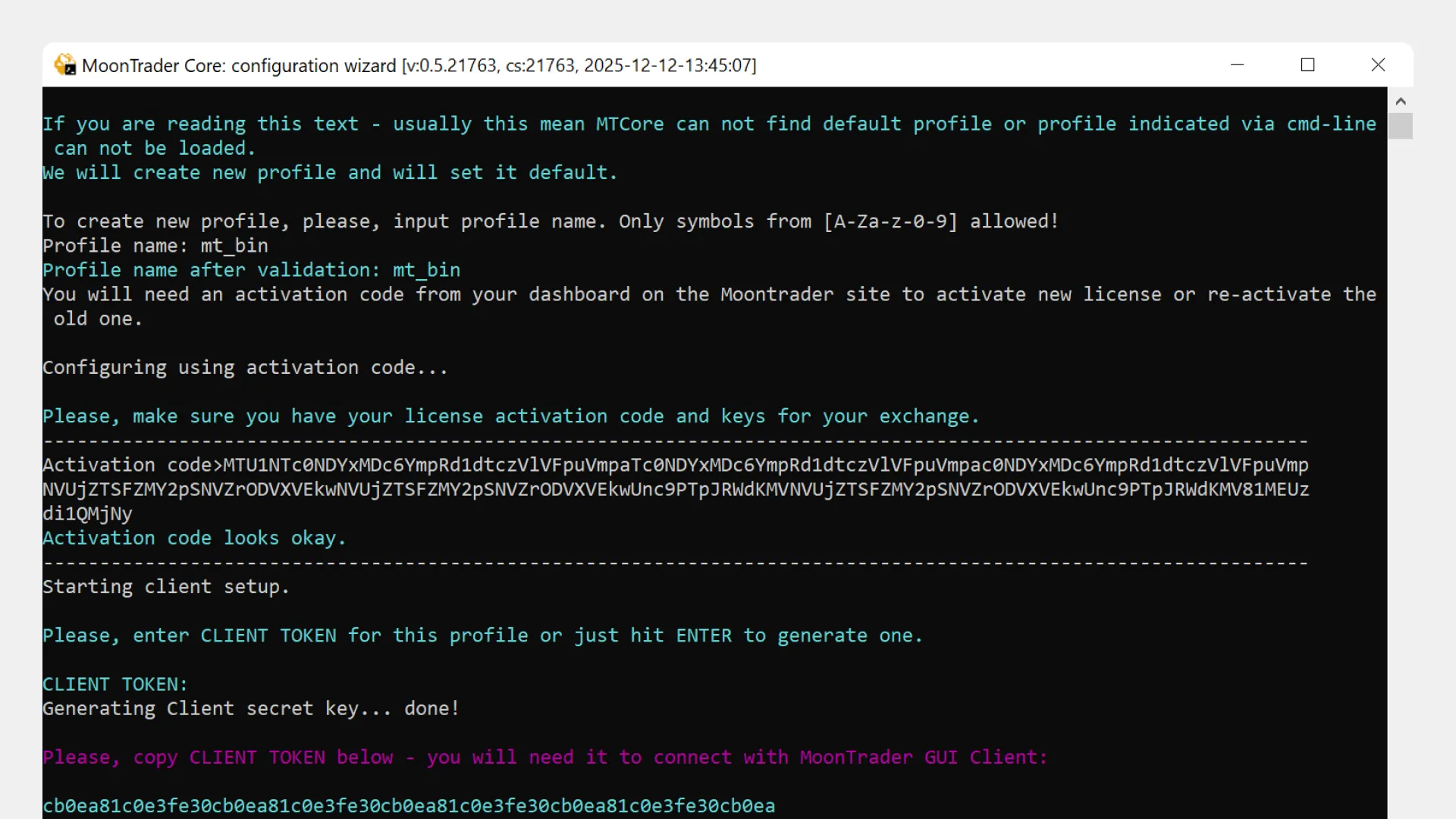
On first launch in Watchdog mode, the system will prompt you to create a default profile:
1. Enter the profile name and press Enter
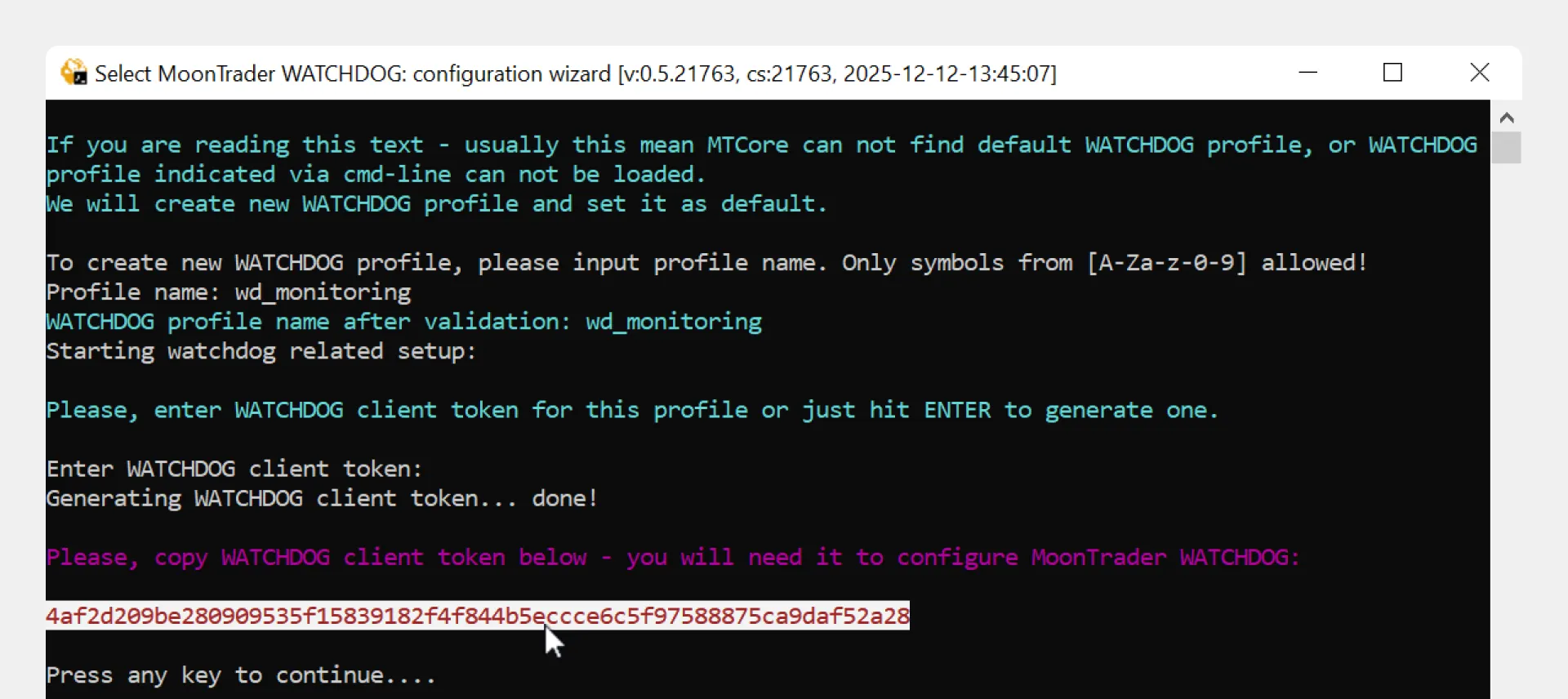
2. Create a Client Token:
* Enter your token or press Enter for automatic generation
* **Make sure to copy and save the generated token**
* **Important:** verify the token was copied correctly — sometimes data doesn't save after pressing Ctrl+C
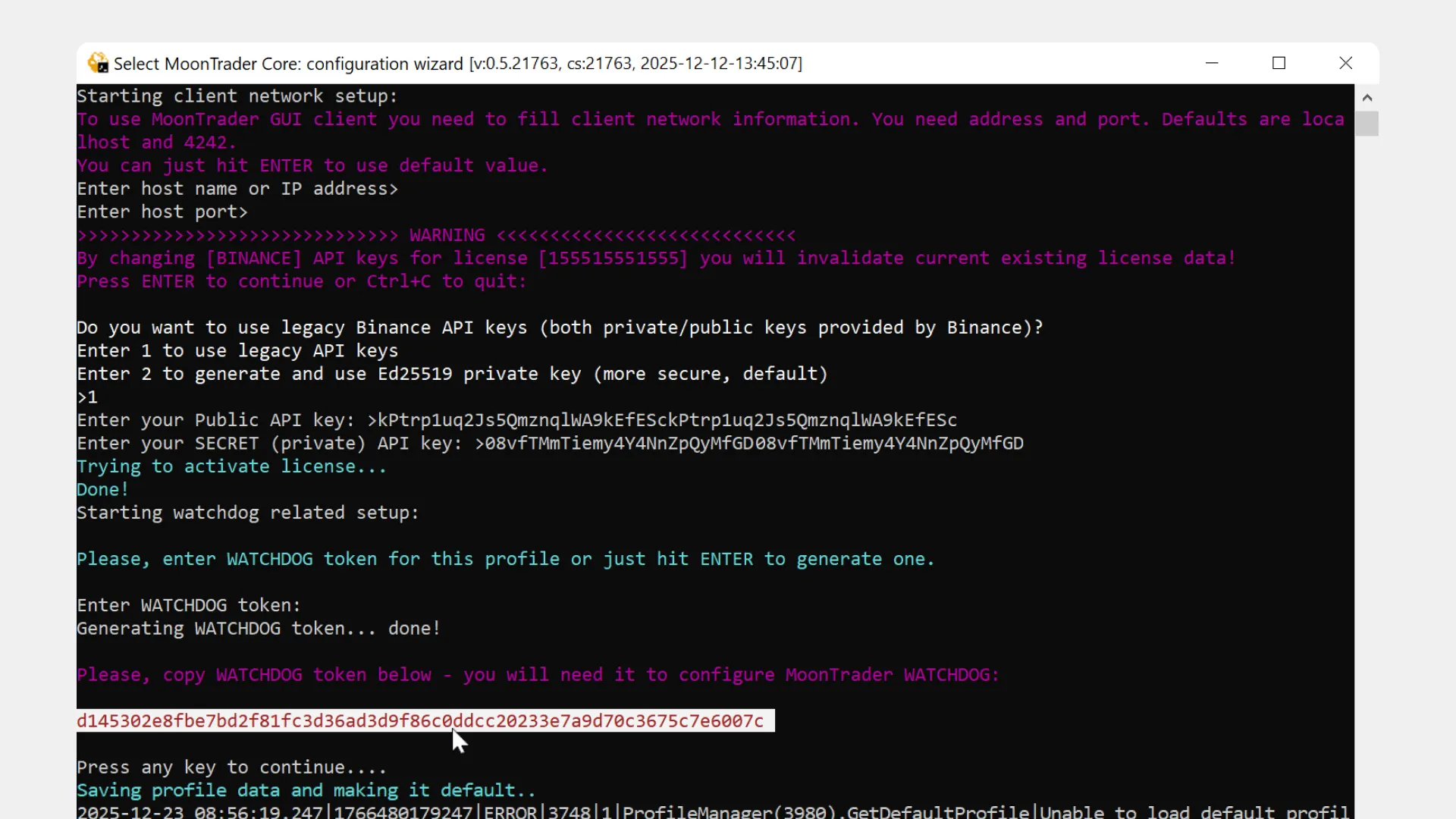
3. Press Enter to continue
4. Configure network parameters:
* **For most users:** simply press Enter — default values will be used (localhost and port 4242)
* **For advanced users:** specify the exact IP address and port that the Watchdog process will listen on
5. After entering the data, the profile with token will be created
**Don't close the Watchdog Core console** — it must remain running for monitoring to function.
### Step 2. Creating a Watchdog Profile in Client
A Watchdog profile contains connection settings to Watchdog Core and the list of monitored trading cores.
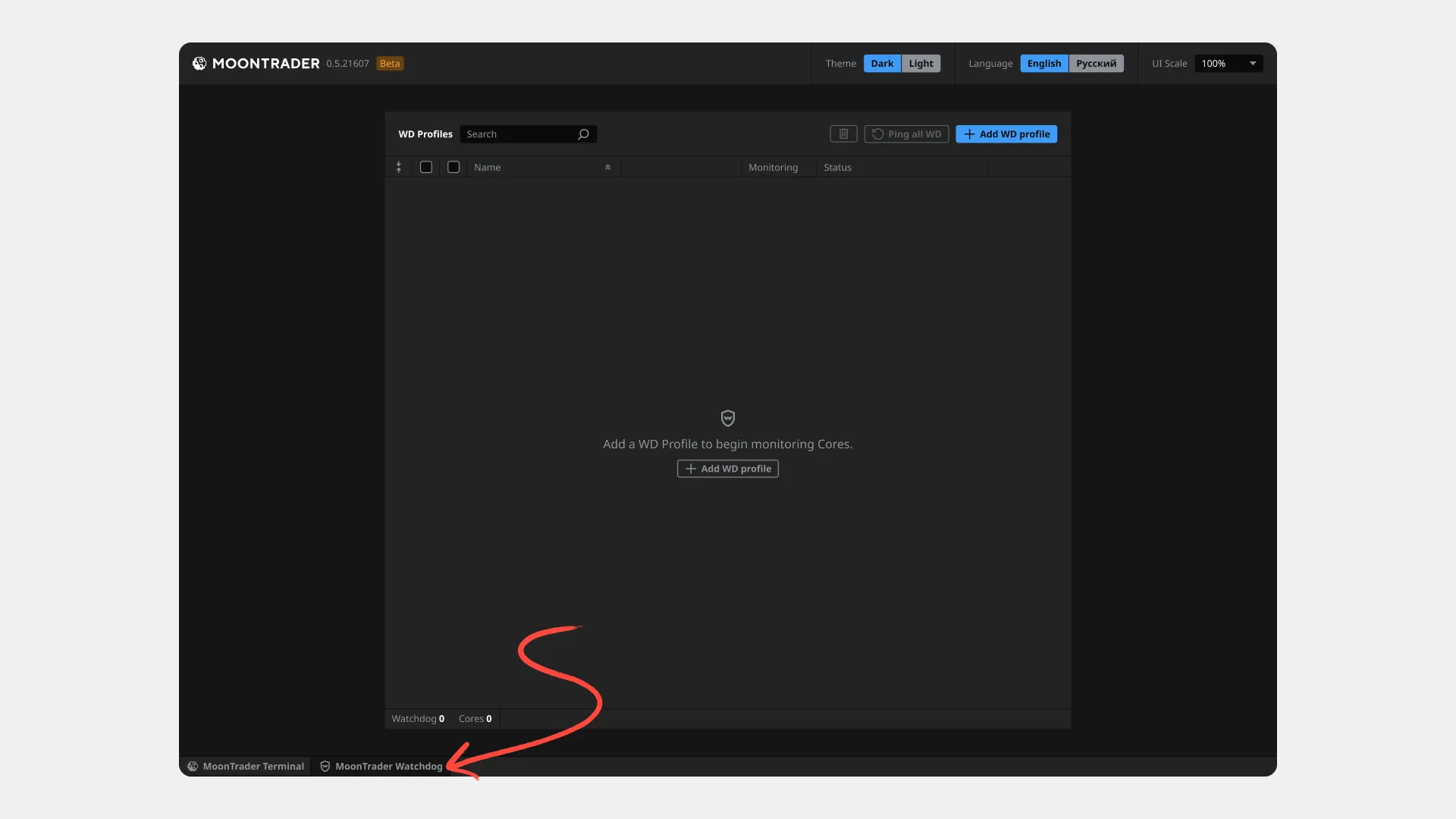
1. Launch MoonTrader Client **on your local computer** (not on VPS)
2. Go to the "MoonTrader Watchdog" tab
3. Click "Add WD profile" in the upper right corner
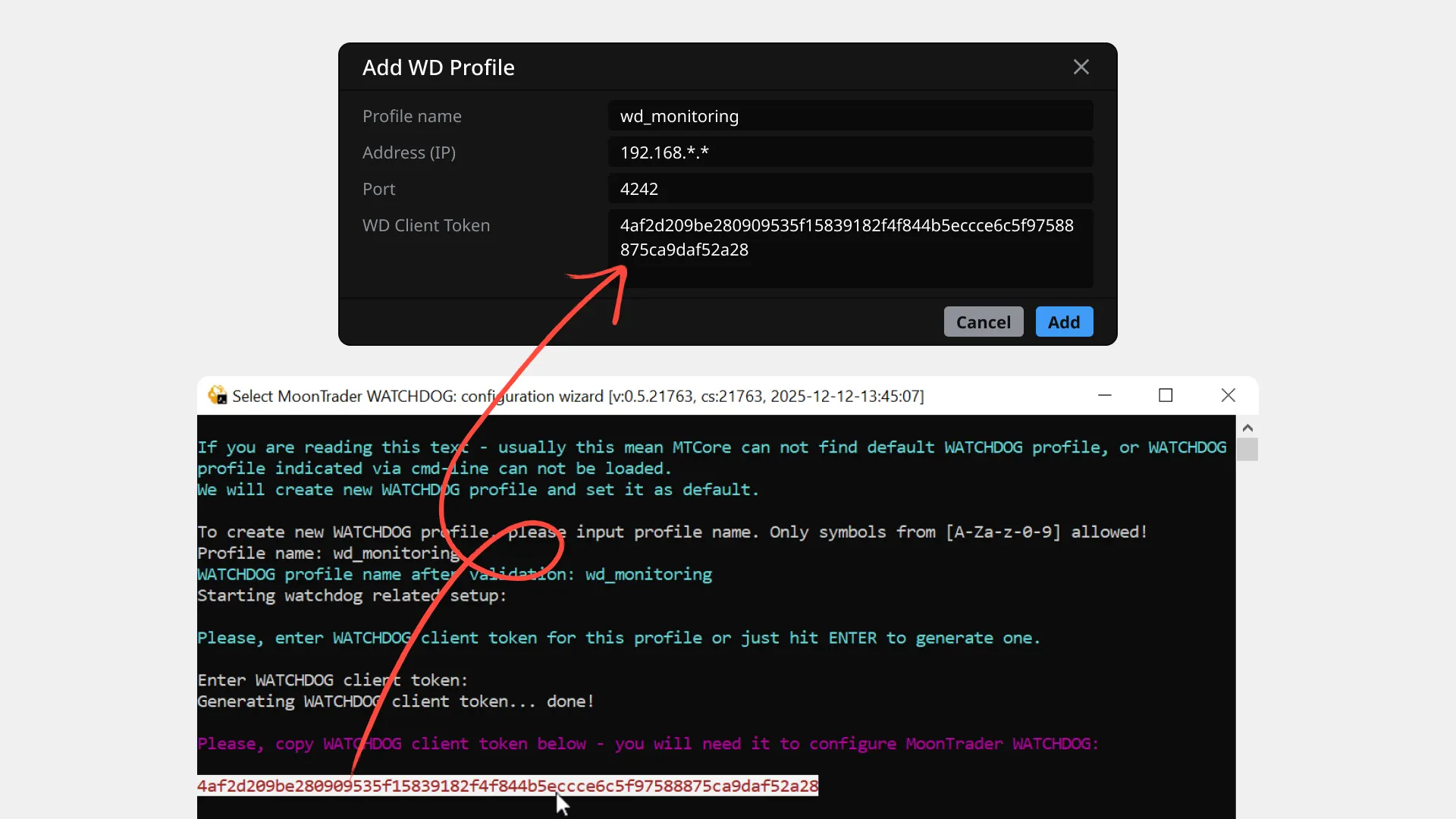
#### Profile Parameters
**Profile Name**
Enter any name (for example, "Main-Monitoring" or "VPS-Monitor")
**IP Address** Enter the public IP address of the VPS server where Watchdog Core is running
**Port** Enter the port you specified when creating the profile in Watchdog Core (default is 4242).
**Watchdog Client Token** Paste the token you saved when creating Watchdog Core on VPS and click "Add"
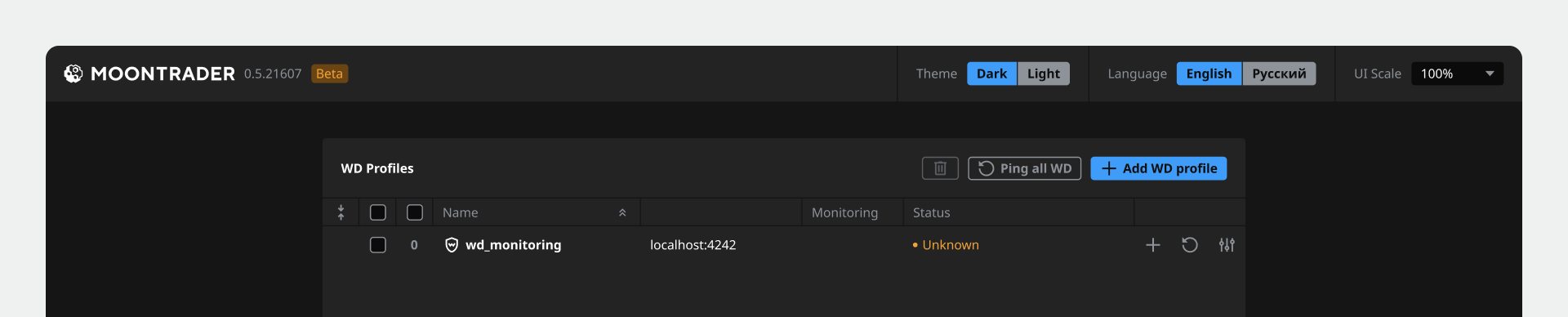
**Result:** Watchdog profile is created and displayed in the profile list.
**Important:** Watchdog Core on VPS must continue running — don't close the console on the server.
### Step 3. Creating Tokens for Trading Cores
Each trading core operates on a separate VPS server and requires its own Watchdog token for the monitoring process.
#### Option A. Setting Up a New Core (Full Setup)
If you're configuring MTCore for the first time on a new VPS:
1. On the VPS with the trading core, launch `MTCore` (without parameters)
2. Complete the initial setup process (Setup) — creating a new default profile:
* Specify the profile name
* Enter the Activation Code
* Create a Client Token (enter your own or press Enter for auto-generation)
* Copy the Client Token — it's needed for connecting MT GUI Client
* Press Enter to continue
* Specify IP Address and Port or press Enter for default values
* Confirm the API Key change (system will warn about invalidating existing license data)
* Select option 1: "Use legacy API keys"
* Enter Public API Key and Secret (Private) API Key
* **Create Watchdog Token:**
* Enter your own token or press Enter for auto-generation
* **Make sure to copy and save the Watchdog Token**
* **Important:** verify the token was copied — sometimes data doesn't save after pressing Ctrl+C
* Press Enter to complete
#### Option B. Updating Token for Existing Core
If the trading core is already configured and running on VPS:
1. Stop MTCore on VPS (close the application)
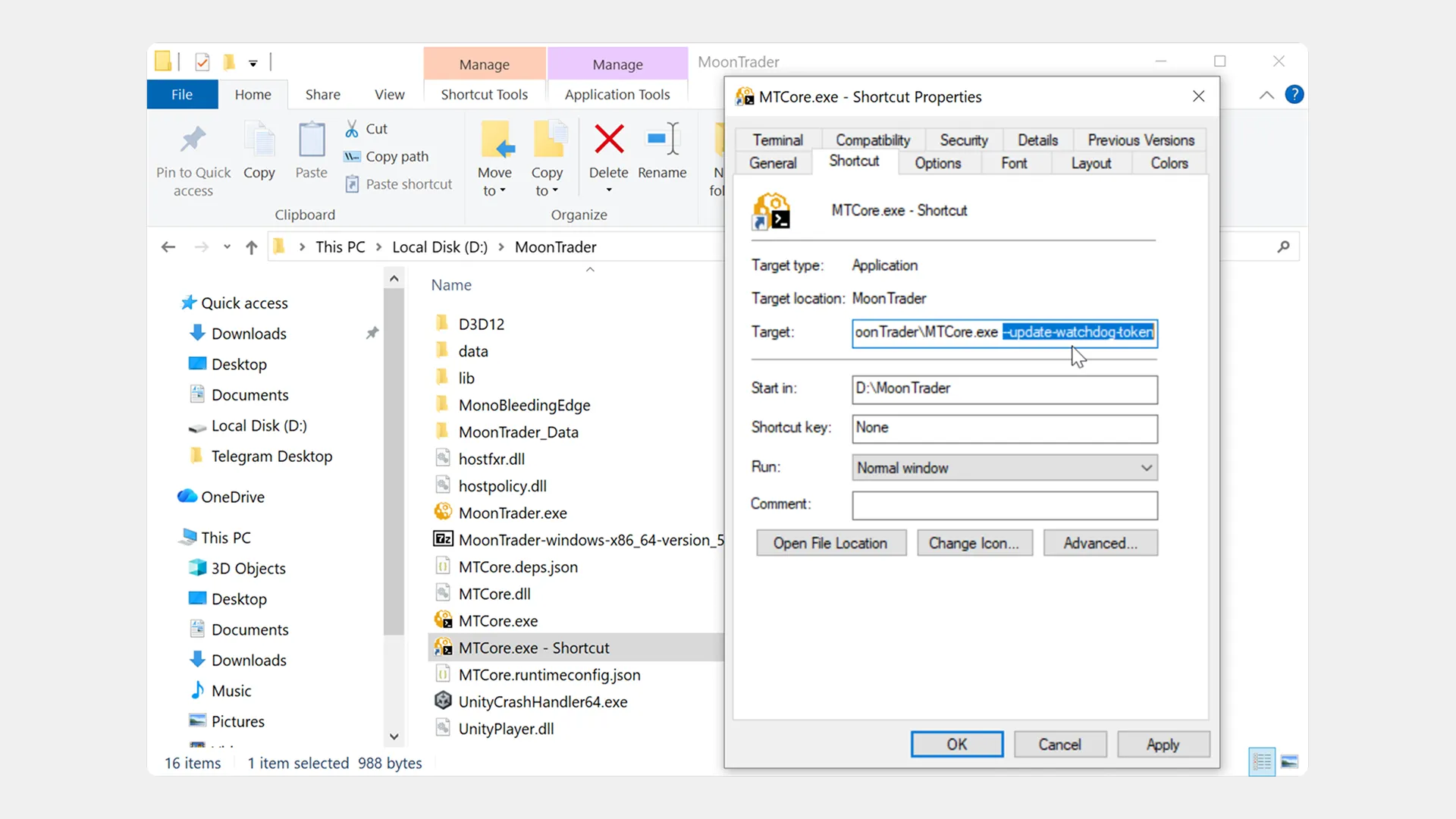
2. Launch MTCore with the `--update-watchdog-token` parameter:
* **Windows:**
* Create an `MTCore.exe` shortcut
* Open shortcut properties
* Add `--update-watchdog-token` to the "Target" field
* Launch via the shortcut
* **Linux:**
* Execute the command `./MTCore --update-watchdog-token`
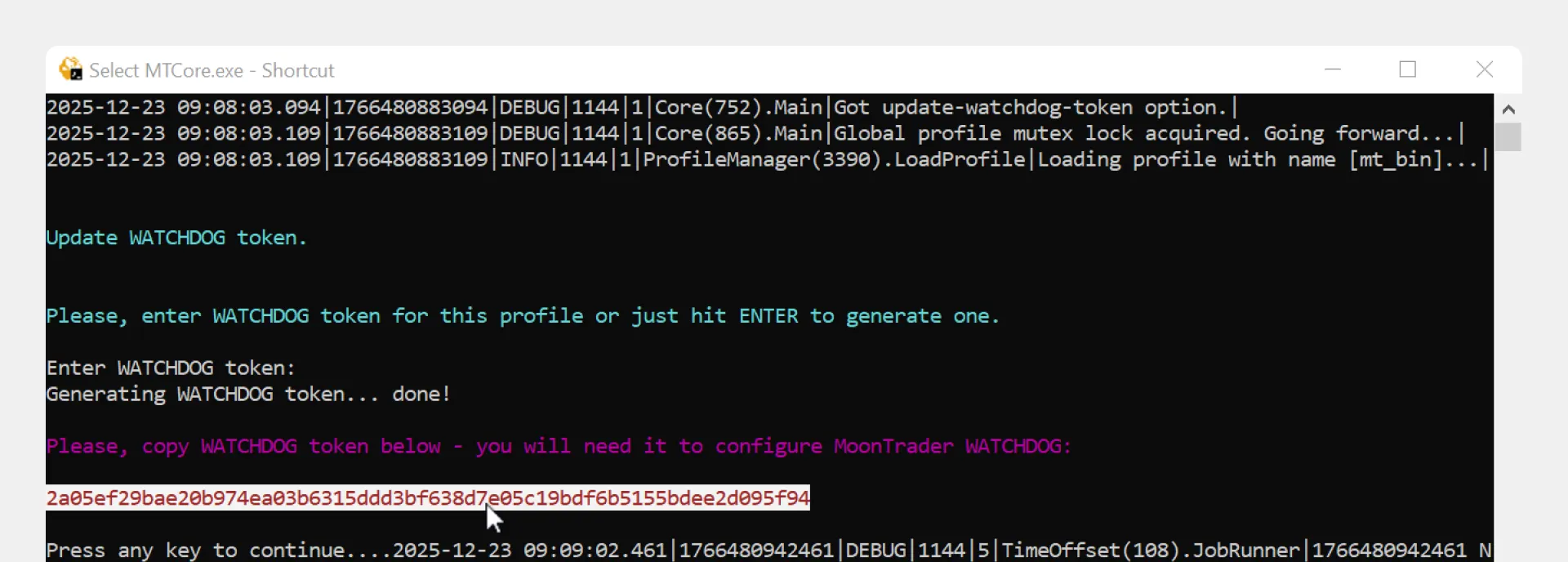
3. The system will prompt you to create a Watchdog Token:
* Enter your own token or press Enter for auto-generation
* **Make sure to copy and save the token**
4. Press Enter to apply changes
5. Close the console
6. Restart MTCore in normal mode (without parameters)
**Important:** after updating the token, you must re-add this core to the Client's Watchdog profile (the old connection will not work — delete it and create a new one with the updated token).
**Repeat this process** for each trading core on different VPS servers that you want to monitor.
### Step 4. Adding Trading Cores to Profile
Now let's connect trading cores to the Watchdog profile for monitoring.
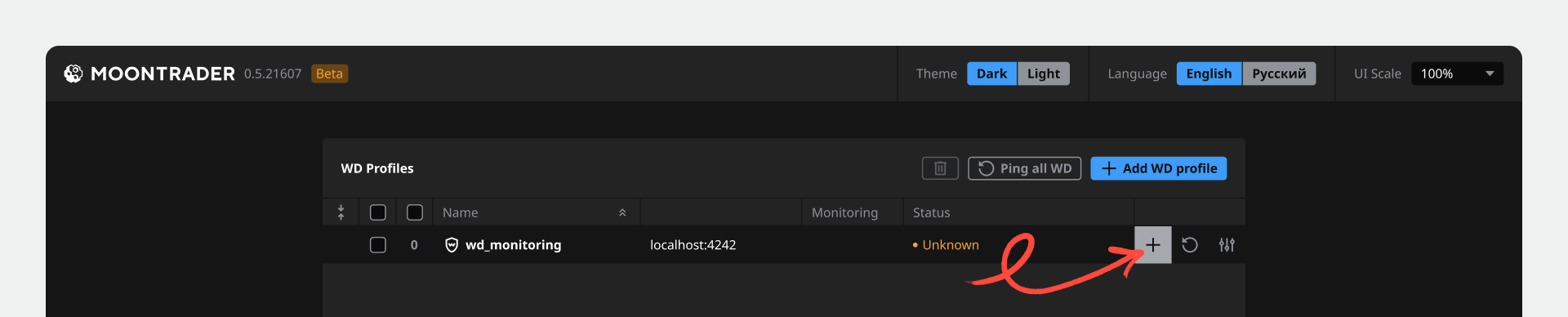
1. In MoonTrader Client (on your local computer), go to the "MoonTrader Watchdog" tab
2. Find the created Watchdog profile in the list
3. Click the "+" icon in the profile row
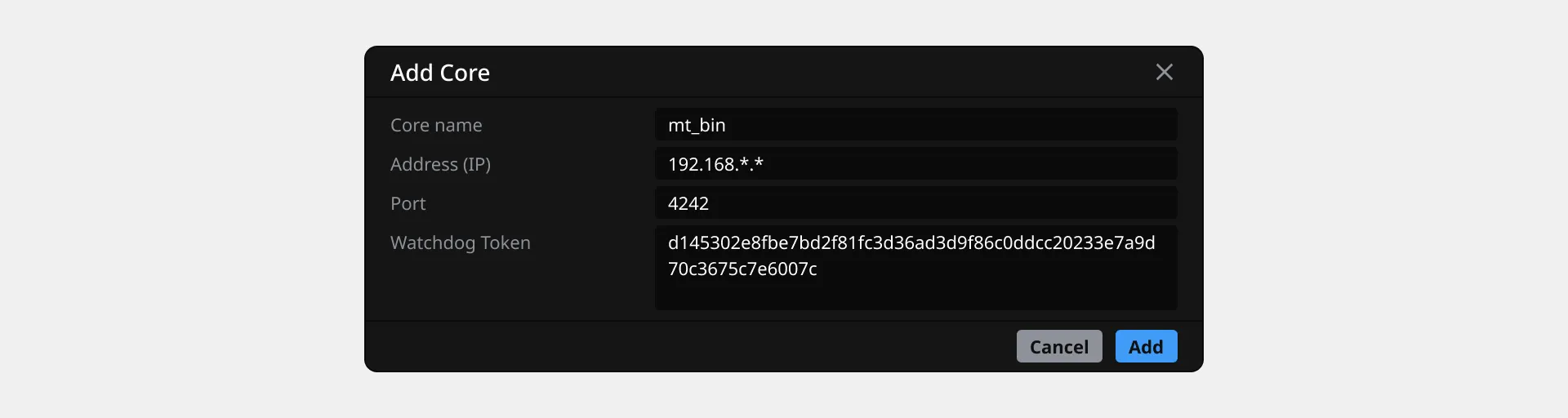
#### Trading Core Parameters
**Core Name** Enter a name for identification (for example, "Binance-Spot", "Bybit-Futures", or "VPS-1")
**IP Address** Enter the public IP address of the VPS server where the trading core is running
**Port** Enter the trading core port.
**Watchdog Token** Paste the token you created for this core in Step 3, and click "Add"
**Repeat this process** for all trading cores on different VPS servers that you want to monitor.
### Step 5. Connection Verification
After adding all trading cores, verify the connections:
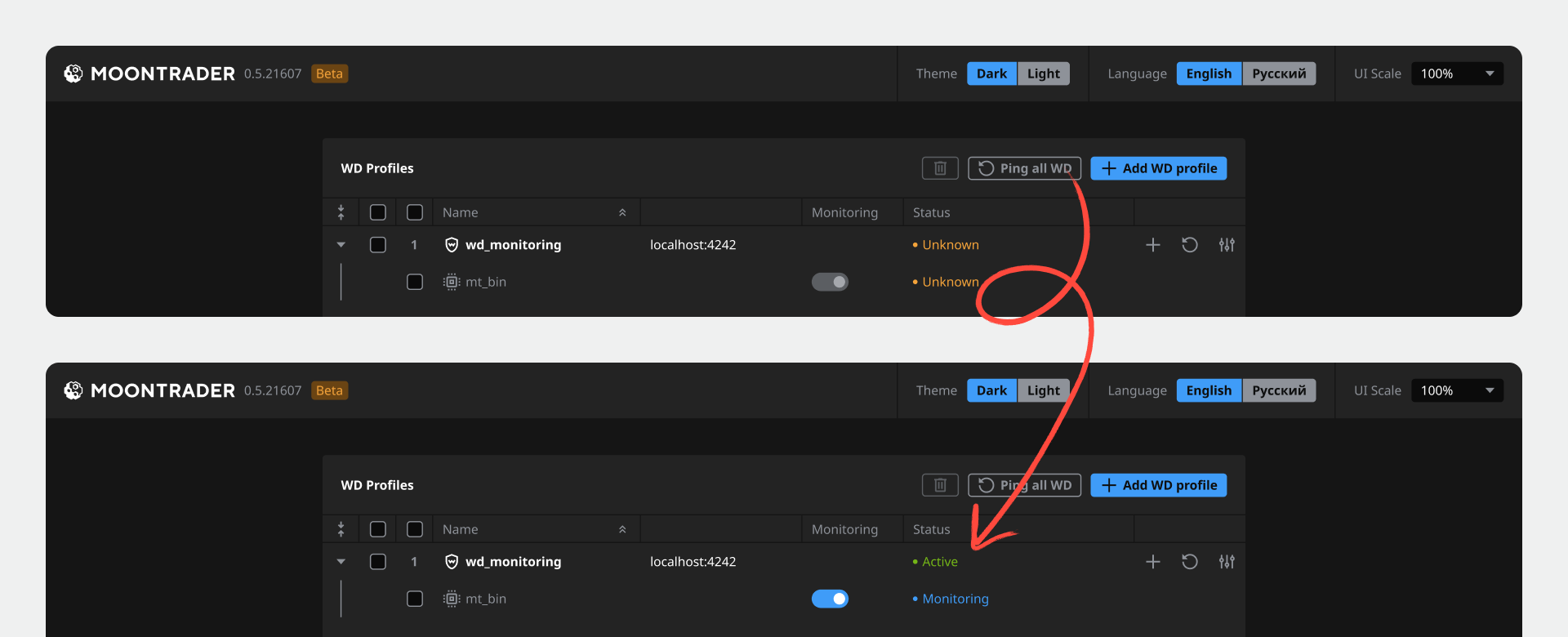
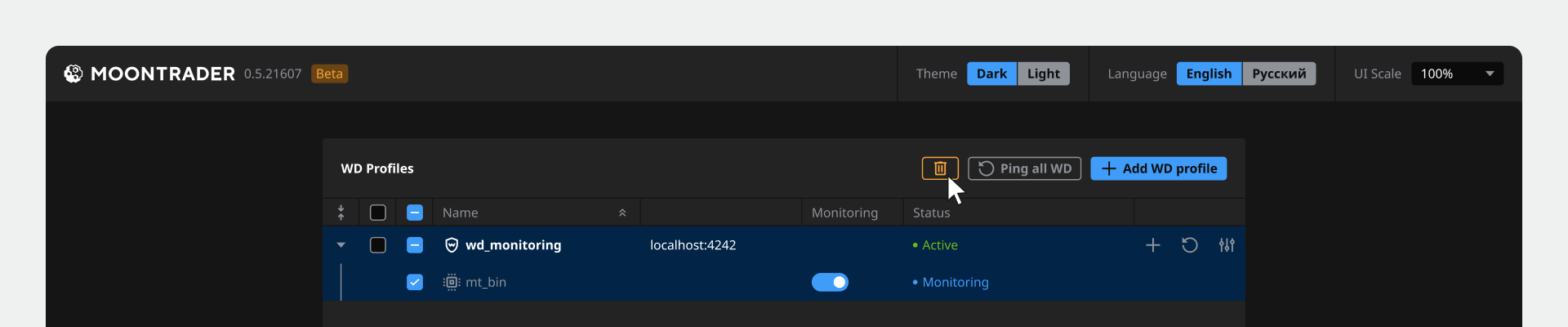
1. On the "MoonTrader Watchdog" tab, click the "Ping all WD" button
2. The system will check availability of all added profiles and cores
3. The status of each profile and core will be displayed in the list
#### If Core is Unavailable
Two possible reasons:
1. **Issue on VPS with Watchdog Core:**
* Connect to the VPS where Watchdog Core is running
* Check if the MTCore console is running in `-watchdog-mode`
* Restart Watchdog Core if necessary
2. **Configuration change on VPS:**
* If you deleted the profile on VPS and created a new one, the old data in Client became outdated
* Delete this core from the Watchdog profile in Client
* Re-add the core with current parameters
### Settings and Notifications
#### Opening Profile Settings
To modify Watchdog profile parameters:
1. On the "MoonTrader Watchdog" tab, find the needed profile
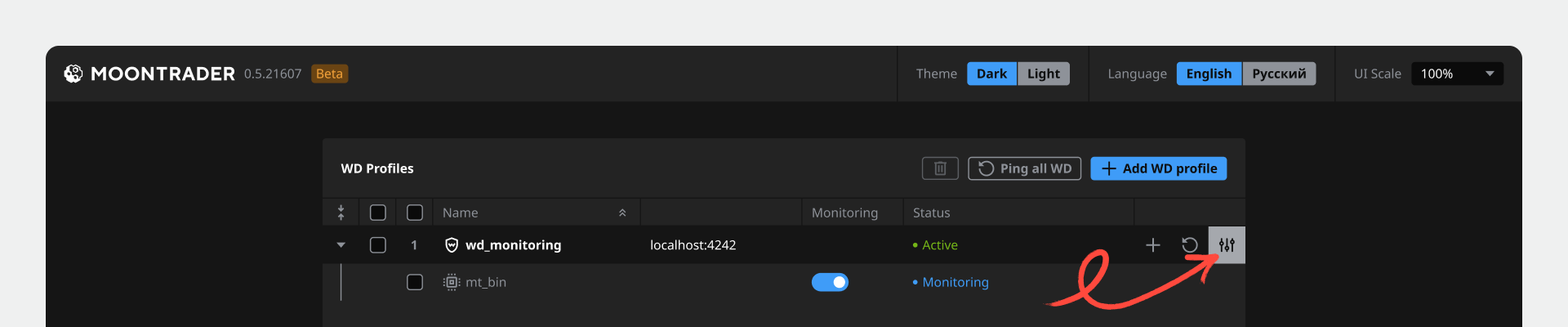
2. Click the settings icon in the profile row
3. The "Settings" window will open
#### Telegram Integration
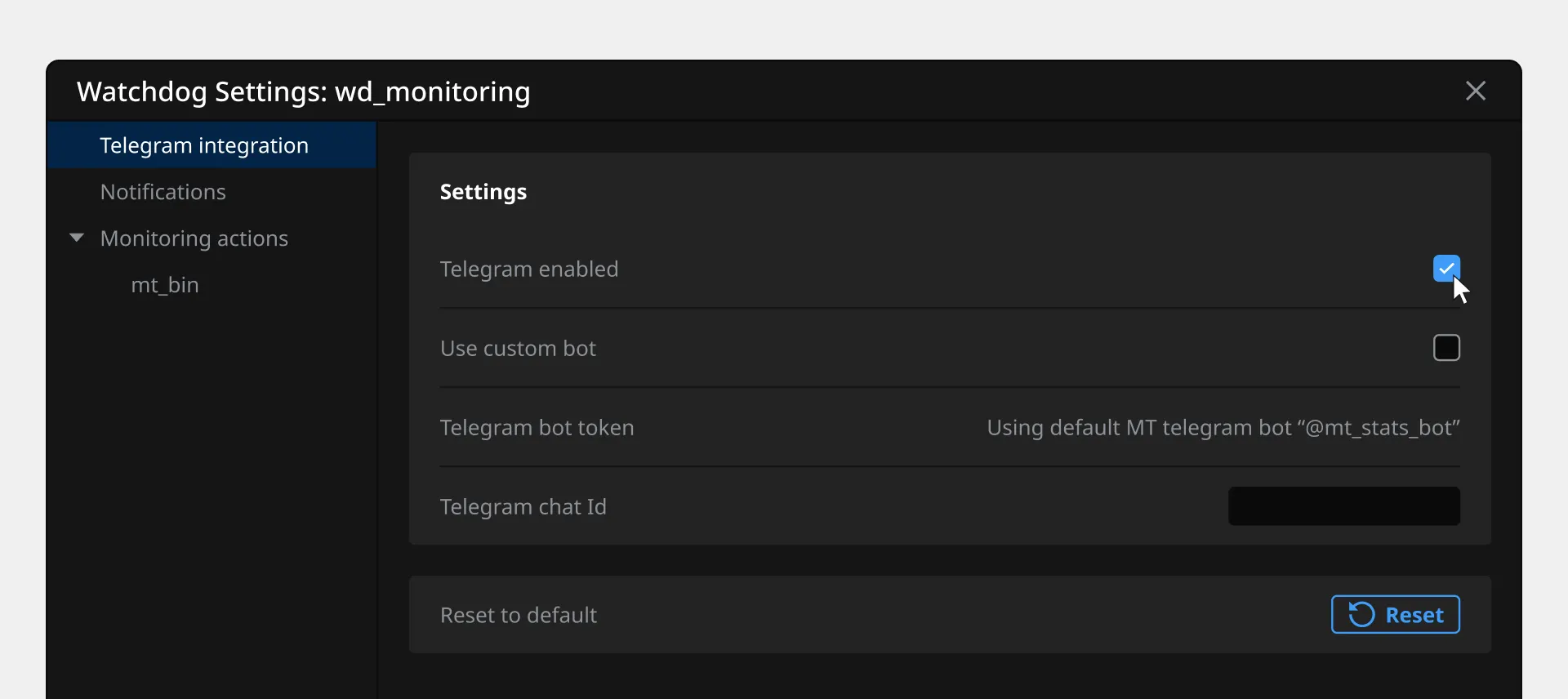
1. Enable notifications — check the "Telegram enabled" box
2. Select bot type:
* If "Use custom bot" is unchecked — the standard MoonTrader bot will be used (`mt_stats_bot`)
* If "Use custom bot" is checked — specify your own bot's Bot Token
3. Enter the Chat ID for receiving notifications
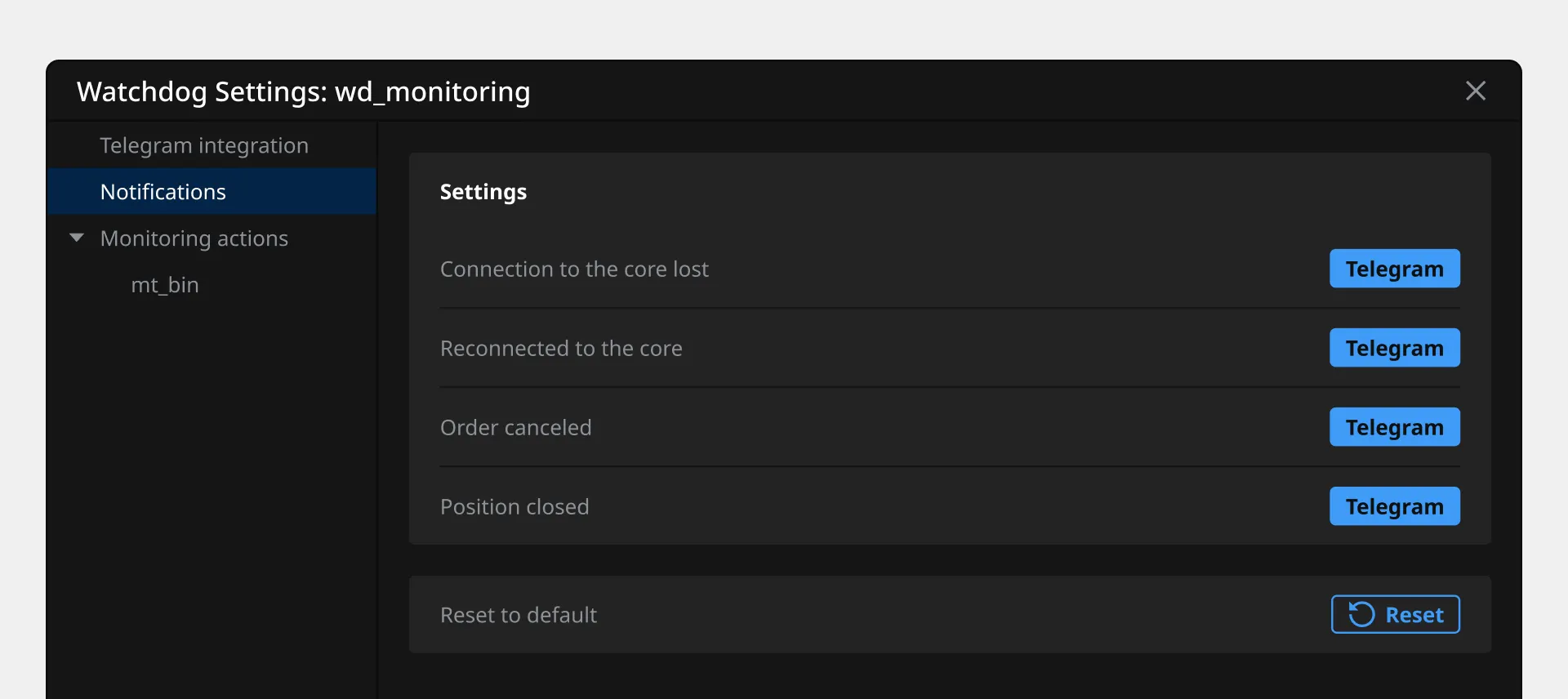
4. Go to the "Notifications" tab
5. Select event types for alerts
**Important:** notification settings in the "Monitoring Actions" section will only become active after enabling Telegram in the previous tab.
#### Actions for Individual Cores
The "Monitoring Actions" section displays a list of all connected trading cores:
1. Select the needed core from the list
2. Configure individual monitoring parameters and notification trigger conditions for this core
### Removing a Trading Core
When removing a core from monitoring:
1. Select the row with the needed core
2. Click the delete icon at the top of the window
3. A deletion confirmation will appear — confirm the action
**Note:** only the monitoring of this specific core is removed; the Watchdog profile itself and other cores remain unchanged.
### Support
If you experience issues with Watchdog setup or operation, contact our [support service via Telegram](https://t.me/moontrader_support_en).
---
# Agent Instructions
This documentation is published with GitBook. GitBook is the documentation platform designed so that both humans and AI agents can read, navigate, and reason over technical content effectively. Learn more at gitbook.com.
## Querying This Documentation
If you need additional information that is not directly available in this page, you can query the documentation dynamically by asking a question.
Perform an HTTP GET request on the current page URL with the `ask` query parameter, and the optional `goal` query parameter:
```
GET https://guide.moontrader.com/en-moontrader-docs/tips-and-recommendations/watchdog-trading-core-monitoring-setup.md?ask=&goal=
```
`ask` is the immediate question: it should be specific, self-contained, and written in natural language.
`goal` is optional and describes the broader end goal you are ultimately trying to accomplish on behalf of the user. GitBook uses it to tailor the answer towards what is most useful for that goal.
The response will contain a direct answer to the question and relevant excerpts and sources from the documentation.
Use this mechanism when the answer is not explicitly present in the current page, you need clarification or additional context, or you want to retrieve related documentation sections.